
Capacity: 22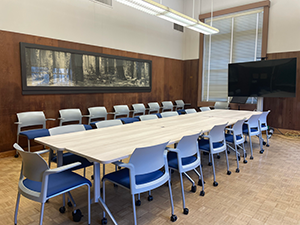
TV Monitor: Yes
Projector Screen: Yes
Black Board: Yes
Please review the calendar and verify that the desired date/time is available before submitting a request. Hover over ‘busy’ to view scheduled start and end times.
To reserve 103 Mulford for a Graduate Class, contact espmrcpt@berkeley.edu.
To reserve 103 Mulford for an Undergraduate Class, contact scheduling.rcnr@berkeley.edu.
How to Reserve 103 Mulford Using bCal:
-
You must be signed-in to your Berkeley Calendar to access. Click Add to Google Calendar at the bottom of the calendar embedded on the page.
-
Search the calendar for the preferred date and time that you want to reserve and click Create Event.
-
In the Add Title section, include your full first name and the first letter of your last name, then a title of your reservation (eg. Frank T. Lab Meeting, Frank T. QE, Frank T. Office Hours). For GSA or Lab meetings, include that in the title.
-
In the Add As Guest section, type "Mulford-103"
-
In the Add Description section, include your ESPM affiliation, reservation business purpose, and the number of attendees. Without these details, requests will be denied.
-
Click More Options and add your Berkeley email address in the Guests section to receive notifications for your reservation.
-
Once you click Save, your reservation request is complete. A staff member will review your request. You will receive bMail notification of your reservation confirmation.
If you have questions or concerns, contact the Department Assistant at espmrcpt@berkeley.edu